

You choose Sign in with Google while setting up Google Health, or Connect with Google Health in eFit, and a page on fitbit.google.com appears in place of the Google sign-in you expected:
This email is used with a different Fitbit account. Your chosen Google Account uses an email address that is already registered with a different Fitbit account.
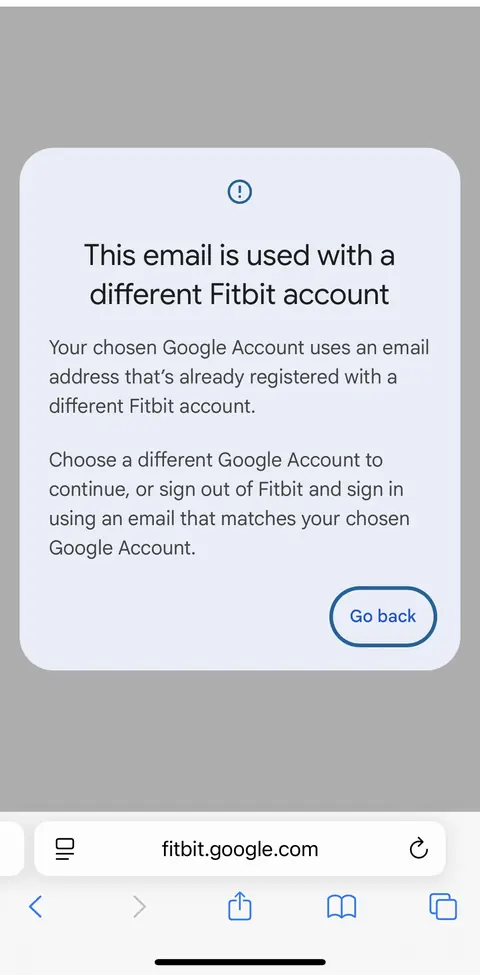
Signing out at fitbit.com and trying again brings you back to the same screen, and so does creating a brand new account.
This reaches people who have never owned a Fitbit. The fix takes about two minutes and happens entirely on Google's own pages.
Reset a Fitbit password, even though you never set one
- Open the Fitbit password reset page: accounts.fitbit.com/forgotPassword. Use this link, because it carries the address that returns you to the account transfer step once the reset is done.
- Enter the email address of the Google account that holds your fitness data, the same one you want eFit to read from.
- Open the reset email and set a new password. This is a brand new password on the Fitbit side. Your eFit password and your Google password both stay exactly as they are.
- Let the page carry you through to the end. It finishes by moving the account over to Google sign-in.
- Go back to the Google Health app or to eFit and sign in with Google again. It now completes on Google.
Then finish connecting eFit
- Log in to eFit and open Fitness Tracker.
- Select Connect with Google Health.
- Sign in with that same Google account.
- Approve every permission so eFit can read your steps, workouts, and heart rate, then finish. eFit returns you to your dashboard with the connection confirmed.
Full walkthrough: Connect eFit With Google Health.
Why a Fitbit page turns up at all
Google Health grew out of the Fitbit app, which it replaced in May 2026, and sign-ins still travel through the account system Fitbit built. Standalone Fitbit accounts ended in July 2026, and every one of them is being moved onto a Google account. An account still waiting for that move gets stopped at a password prompt on the way through. Because an account can be created for you during the move, the prompt reaches people who have never owned a Fitbit device and never opened the Fitbit app.
Why that page's own suggestions send you in circles
The message offers two ways out, and both assume you have a Fitbit account you can sign in to:
- Choose a different Google Account. This helps only if a second Google account of yours holds your fitness data. A brand new account arrives at the same message.
- Sign out of Fitbit and sign in with a matching email. Signing out at fitbit.com and returning lands you back here, because the account it wants you to sign in to is the one you have no password for.
Setting a password is what breaks the loop, which is why the reset above is the step that works.
If the reset email does not arrive
- Look in your spam or junk folder, and search your mail for fitbit.
- Check the address you typed. It has to be the address on the Google account you use for Google Health, character for character.
- Wait ten minutes and request the reset once more. School mail systems often hold the first message for a few minutes.
- Open the link in a private or incognito browser window. A signed-in Fitbit or Google session in your normal window can send you around the same loop.
- Once the email arrives, use it promptly. Reset links expire.
Still stuck
If you complete the reset and Google still hands you to Fitbit, open a support ticket. Include a screenshot of the page you land on, the exact wording of any message on it, and whether you are on a phone or a computer. We will work through it with you.
Google's help centre for the app is at support.google.com/googlehealth. To change the password you use for eFit itself, see Changing Your Password.
Related articles
- Connect eFit With Google Health
- eFit Says Your Google Account Needs a Google Health Profile
- Google Will Not Let You Sign In (Can’t Access This Service)
- Moving From Google Fit or the Fitbit App to Google Health
- Connect eFit on an iPhone (Google Health App and Apple Health)
- What Is Google Health and How eFit Uses It