

You choose Connect with Google Health in eFit, sign in with Google, approve everything it asks for, and instead of your dashboard you get this:
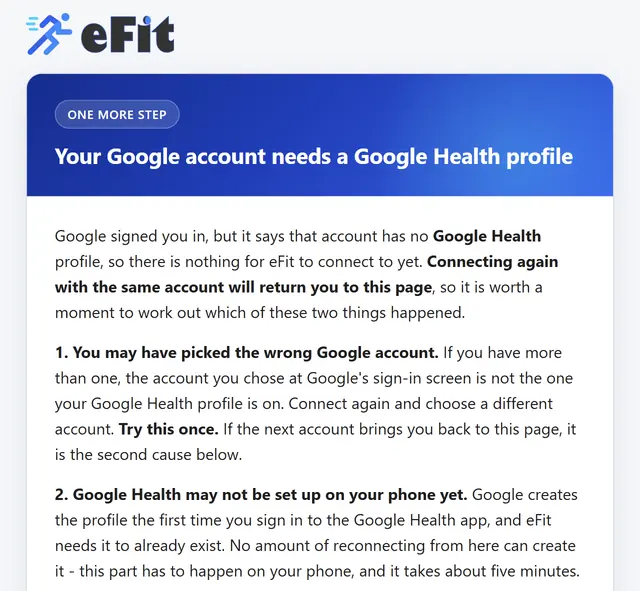
The sign-in worked. Google handed eFit a valid pass for your account and then told eFit that this particular Google account has no Google Health profile attached to it, so there is no fitness data for eFit to read.
Cause 1: you picked the wrong Google account
Most people have more than one Google account, often a personal one and a school one. Your fitness data lives on exactly one of them, and the account chooser does not tell you which.
- Open Fitness Tracker and choose Connect with Google Health again.
- At Google's sign-in screen, pick a different account from the one you used last time. If it goes straight to your account without asking, sign out of Google first, or use a private browsing window.
- Approve every permission.
Try this once. If the second account brings you back to the same page, your accounts are fine and it is cause 2 below.
Cause 2: Google Health is not set up on your phone yet
Google creates your Google Health profile the first time you sign in to the Google Health app. Until that happens the profile does not exist, and eFit has nothing to connect to. This is the common one, and it reaches people who have been tracking steps on their phone for years, because the phone can be recording activity long before the Google Health app is ever installed.
It takes about five minutes, and it happens on your phone rather than in eFit:
- Install the free Google Health app from Google Play on Android or the App Store on iPhone. Search for Google Health and check that Google LLC is the publisher.
- Open it and sign in with the Google account you want eFit to use. Write down which one you chose, because you need the same account in step 5.
- Work through the setup screens to the end. On Android, allow Health Connect when it asks. On iPhone, allow it to read from Apple Health, and turn on every category it offers.
- Come back to eFit and open Fitness Tracker.
- Choose Connect with Google Health, pick that same Google account, and approve every permission.
Step-by-step guides with screenshots: Connect eFit With Google Health, or Connect eFit on an iPhone.
Why connecting again keeps bringing you back
Every attempt asks Google the same question and gets the same answer, so the round trip through the sign-in screen ends on this page each time. After a couple of tries eFit says so directly:
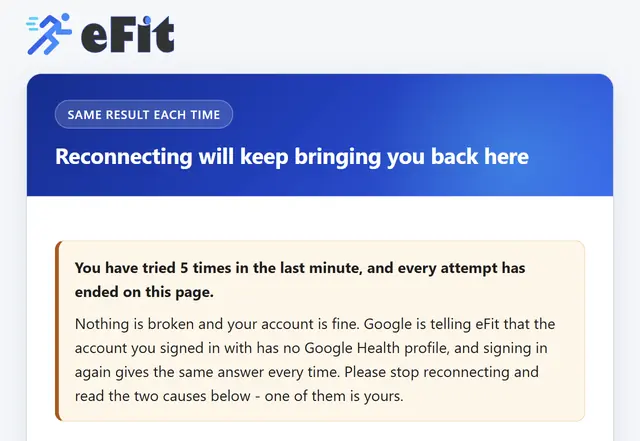
Nothing is wrong with your eFit account, your password, or your enrollment while this is happening. The missing piece sits on the Google side, and it is created by the Google Health app.
Will I lose the days in between?
No. When you do connect, eFit reaches back to the day your activity assignment started and imports everything Google Health holds for that stretch, so finishing the setup this evening rather than this minute does not leave a hole in your log. What eFit can import is whatever Google Health has recorded, so the sooner the app is collecting, the more complete that history is.
If a day still looks empty afterwards, work through Troubleshooting Fitness Tracker Sync Issues, and speak to your instructor about an excused day if it was outside your control.
Still stuck
If Google Health is set up on your phone, you have signed in to eFit with that same account, and you still land on this page, open a support ticket. Tell us which Google account you used, whether you are on Android or an iPhone, and roughly when you last tried. We can see the connection attempt on our side and match it to your account.
Google's own help centre for the app is at support.google.com/googlehealth.